The guide

Find your way around Tailmates

Type what you want to do. The guide shows you where it lives in the app, one tap at a time, with the screen you will see when you get there.

Walks

Start a walk, open it to friends, and talk on the way.

Start a walk friends can join and share the invite card

  1. Tap the plus button at the bottom right, just above the tab bar, to start an activity
  2. Under Pick your activity choose the activity, and under Who's walking? pick your dog
  3. Under Who can join? tap Open to friends
  4. Tap Start Walk
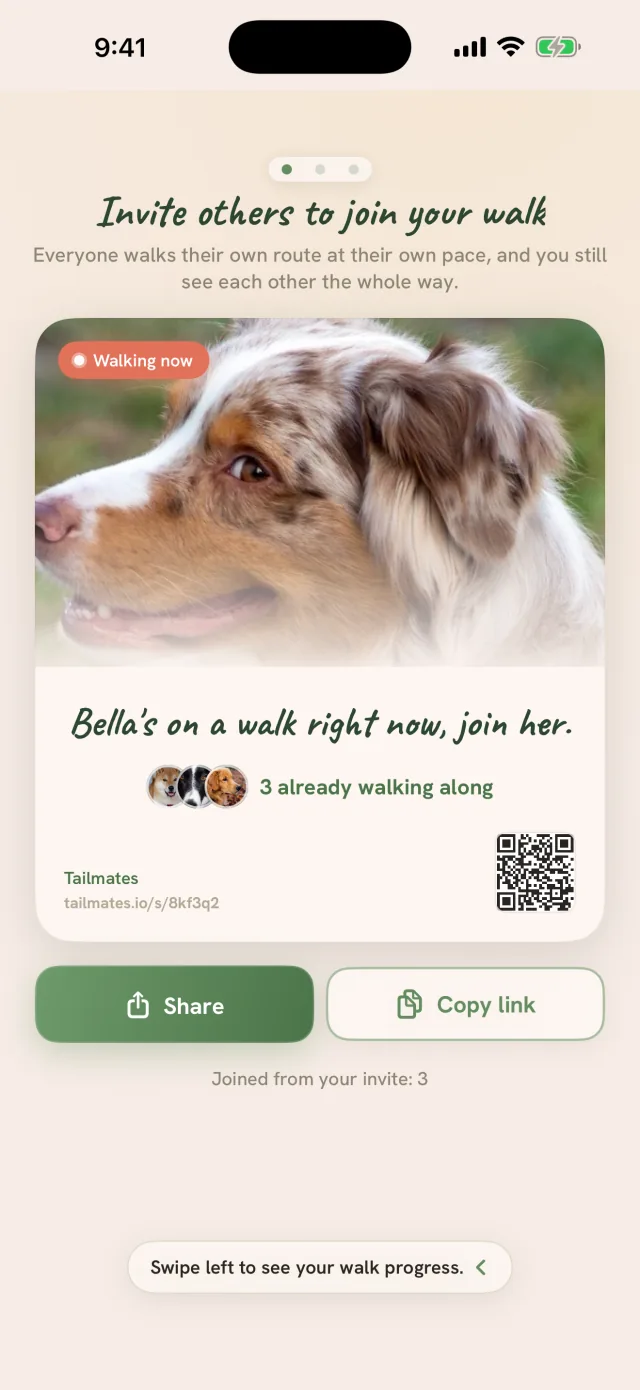
  5. The walk opens on Invite others to join your walk. Tap Share to send the card, or Copy link
  6. Swipe left to see your walk progress

Open in the app
Tailmates invite card at the start of an open walk: your dog's photo, a QR code, and the Share and Copy link buttons

Talk on a walk in the voice room

  1. Start a walk with Who can join? set to Open to friends, or join a friend's open walk
  2. Swipe left from the invite card to the walk party
  3. Tap Voice at the top of the party, beside Chat
  4. Tap Join voice
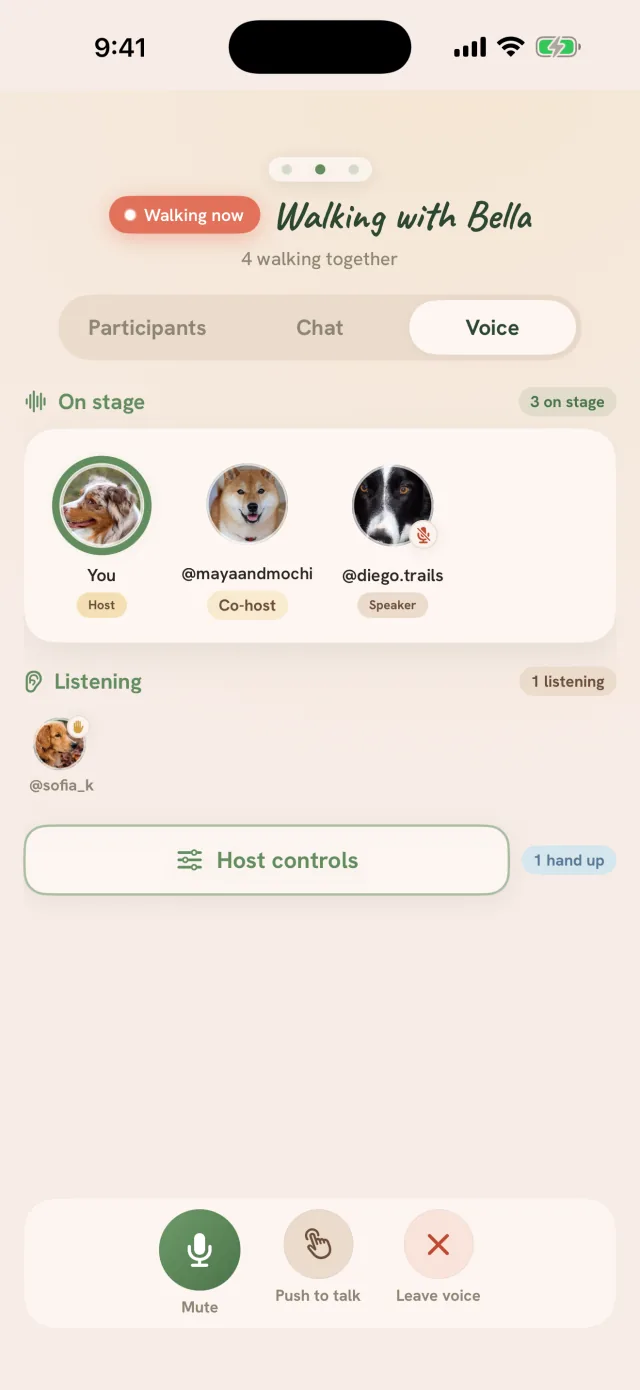
  5. Tap Mute or Unmute while you talk, and Leave voice when you are done
Open in the app
Tailmates walk party, Voice segment: who is on stage, the Mute and Push to talk buttons, and Leave voice

Message your walk party

  1. Start a walk with Who can join? set to Open to friends, or join a friend's open walk
  2. Swipe left from the invite card to the walk party
  3. Tap Chat at the top of the party
  4. Type a message and tap Send
Open in the app
Tailmates walk party, Chat segment: the party chat thread and the message composer

Let anyone on Tailmates join your walk

  1. Tap the plus button at the bottom right to start an activity
  2. Under Who can join? tap Open to friends
  3. Turn on Discoverable to everyone. Off, it reads Only packmates can join your open walks
  4. Tap Start Walk. Your walk is listed in Live now while you walk, and leaves the list when you turn the switch off
Open in the app
Tailmates Who can join? control: Discoverable to everyone, off, reading Only packmates can join your open walks

Credit walks from Apple Health

iPhone only.

  1. Tap the plus button at the bottom right to start an activity
  2. Tap Import from Apple Health under the Start button
  3. If iOS says Health access is off, open the Settings app, tap Privacy & Security, then Health, then Tailmates, and turn everything on
  4. Read about it any time under Works with Apple Health, in Settings under Walks
Open in the app

Tailmates Town

Coins, building, and your walker.

Open Tailmates Town

On iPhone 11 and later, and on Android phones with 4 GB of memory or more.

  1. Tap the Tailmates mark at the top left to open the menu
  2. Tap the Tailmates Town card at the top of the menu
  3. The first time, tap Start and give Town a moment to get ready
  4. Town opens full screen. Tap Build to spend your Coins on your town, or Explore to look around
  5. After a walk you can also tap Open Tailmates Town on the walk summary, or on the Town card at the top of Home while Coins are waiting
  6. Tap the close button at the top left to go back to Tailmates
Open in the app

Change your walker's look in Town

On iPhone 11 and later, and on Android phones with 4 GB of memory or more.

  1. Open Tailmates Town from the card at the top of the menu
  2. Tap the Tailmates chip at the top left, beside the close button, to open the Town menu
  3. Under Your walker, tap Change look
  4. Pick a look, then tap Save look
Open in the app

Packs

See who is out right now, find people, and plan walks with your pack.

See who is out walking right now and join them

  1. Tap the Tailmates mark at the top left to open the menu
  2. Under Near you, tap Live now
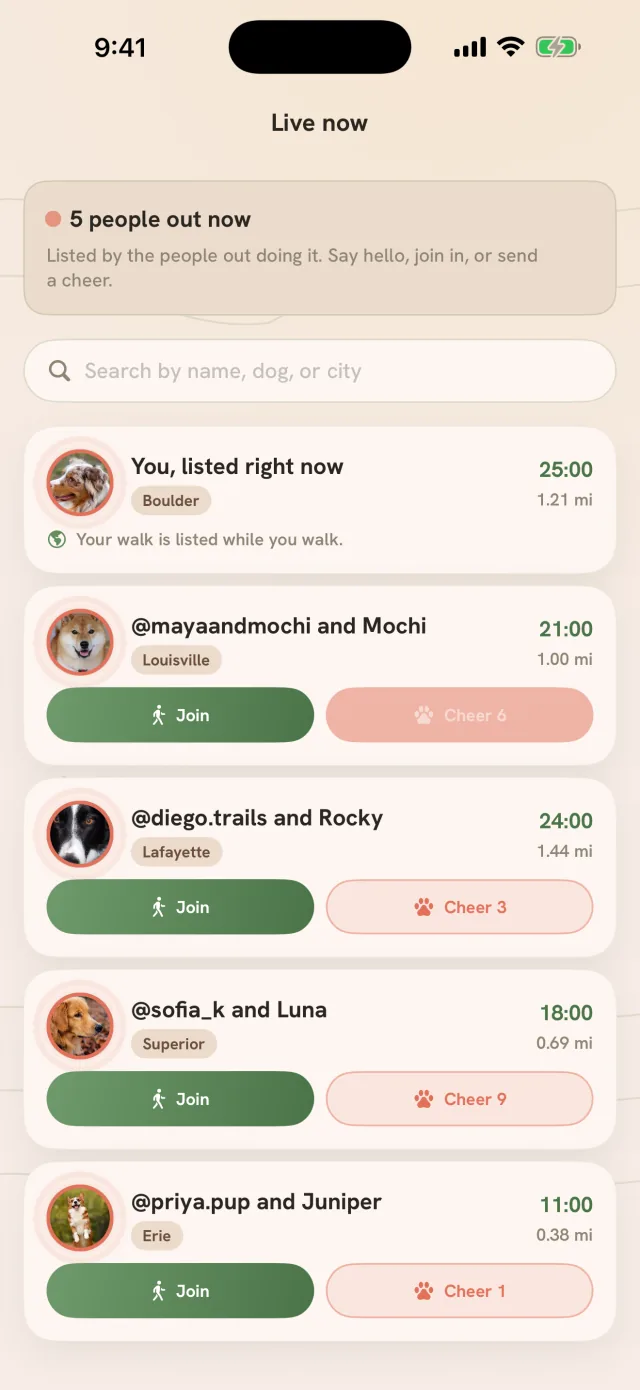
  3. Tap Join next to a walker. It shows Joining, then Walking along once your walk starts
  4. You can also cheer or join from the Live now rail on Home, or from the Live now tile in Packs, under Groups
Open in the app
Tailmates Live now: your own walk listed at the top, then other walkers with their city, time and distance and a Join button

Plan a virtual walk with your pack

On iPhone

  1. Open the Packs tab
  2. Tap Meetups at the top
  3. Tap the plus button, Create Pack Walk
  4. Under How you'll meet, choose Virtual
  5. Name the walk, set When it starts, then tap Create on New virtual meetup
  6. Share the invite card that appears so packmates can say they are going

On Android

  1. Open the Packs tab
  2. Tap Meetups at the top
  3. Tap the plus button at the top right, Add meetup
  4. On New Pack Walk, give the walk a title, then under Where choose Virtual
  5. Under When set when it starts, then tap Create
  6. Share the walk so packmates can say they are going
Open in the app
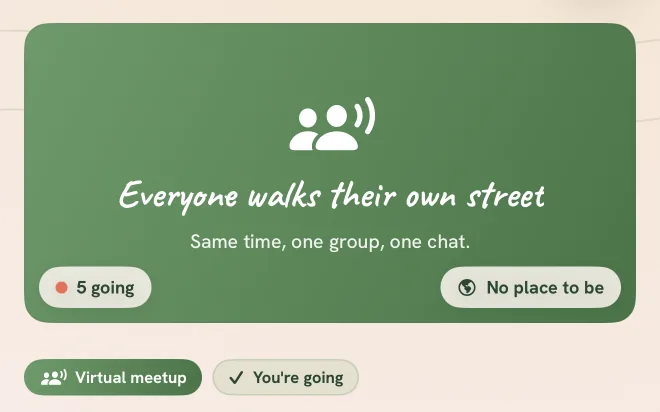
Tailmates virtual meetup header: everyone walks their own street, same time, one group, one chat, five going

Longevity

Your dog's longevity estimate, and how to share it.

Save or share your dog's longevity estimate

On iPhone

  1. Open the Profile tab and tap Longevity at the top. The estimate unlocks when you reach Level 10
  2. If you have more than one dog, tap the dog name at the top and pick one
  3. Tap Share your dog's estimate. The button carries your dog's name, and reads lab-verified score once bloodwork is confirmed
  4. On the Share screen pick a platform and theme, then tap Save image to keep it in Photos, Copy to copy it, or Share to send it anywhere
  5. For a full copy of your account data instead, open the Profile tab, tap the Settings gear, then tap Export my data under Your Data

On Android

  1. Open the Profile tab and tap Longevity at the top. The estimate unlocks when you reach Level 10
  2. If you have more than one dog, tap the dog name at the top and pick one
  3. Tap Share estimate. It reads Share score once bloodwork is confirmed
  4. On the share screen, tap Save image to keep it, or Share to send it anywhere
  5. For a full copy of your account data instead, open the Profile tab, tap the Settings gear, then tap Export my data under Your Data
Open in the app
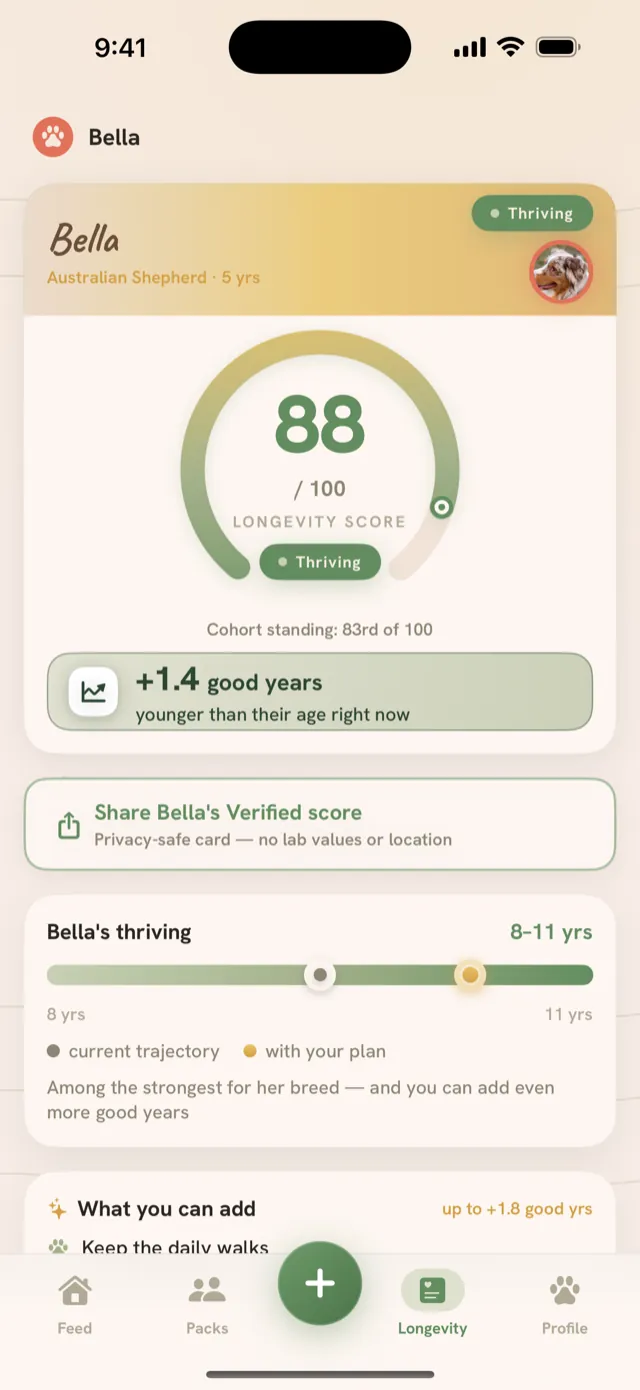
Tailmates Longevity tab: your dog's longevity score with the share button and the 8 to 11 years range

Your vet

Add your clinic, invite your vet, and ask for an appointment.

Add your veterinarian

  1. Tap the Tailmates mark at the top left to open the menu
  2. Under Care, tap Find a vet
  3. Search by vet, clinic, city or ZIP, or pick a clinic under Vets near you
  4. Tap the clinic to open Add my vet
  5. Pick the dog, then tap Add as my vet
  6. Back on the list, your clinic shows under Your vet

Invite your vet to join Tailmates

On iPhone

  1. Open the Profile tab and tap Longevity at the top
  2. Under What's moving the needle, tap the Bloodwork bar marked Unlock with your vet
  3. On Unlock Bloodwork, tap Or just invite your vet to join Tailmates
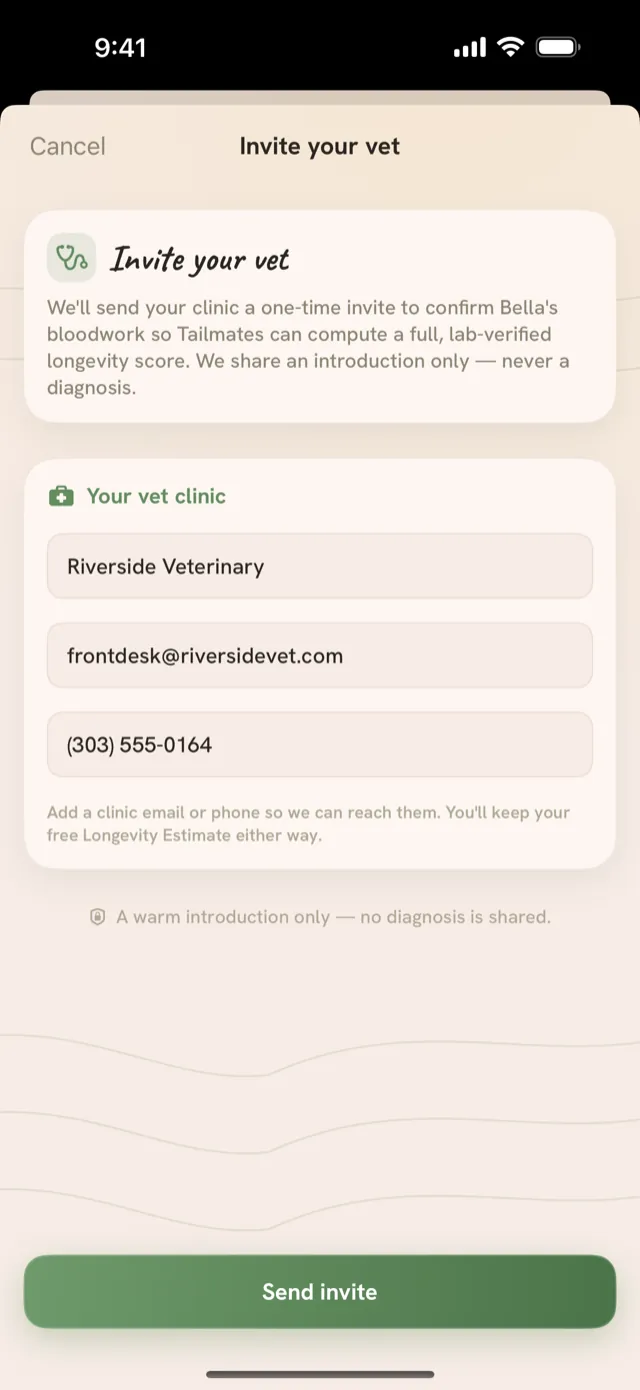
  4. Enter the clinic name and a clinic email or phone, then tap Send invite
  5. Already added your clinic in Find a vet? Tap Invite your vet under Your vet there, then tap Send invitation

On Android

  1. Tap the Tailmates mark at the top left to open the menu
  2. Under Care, tap Find a vet
  3. Find your clinic, then tap Invite your vet
  4. Check the clinic email, then tap Send invitation
Tailmates Invite your vet: the clinic name, email and phone fields and the Send invite button

Request a vet appointment

  1. Open the Profile tab and tap Longevity at the top
  2. Under Vets near you, tap Request appointment beneath a vet
  3. On Request appointment, pick your dog, add the reason for the visit and a preferred time window, then tap Send request
  4. Tap Appointment requests under Vets near you to follow the reply, and tap Accept proposed time if the clinic offers a slot
Open in the app

Health record

Your dog's record, and a passport you can hand to a sitter.

Share your dog's health passport

On iPhone

  1. Tap the Tailmates mark at the top left to open the menu
  2. Under your dog's name, tap Passports
  3. Tap Create a passport
  4. Under Who is this for? pick the person you are sharing with
  5. Choose what to share, then tap Continue
  6. Add a label if you want one, then tap Create passport
  7. Tap Share or Copy link, then Done. The link shows once, so share it now
  8. Passports also opens from Share as passport at the top of your dog's Health record

On Android

  1. Tap the Tailmates mark at the top left to open the menu
  2. Under your dog's name, tap Passports
  3. Tap New passport
  4. Under Who is this for? pick the person you are sharing with
  5. Under What they can see, turn on what to share, and add a label if you want one
  6. Tap Create passport
  7. Tap Share or Copy link, then Done. The link shows once, so share it now

Goals and reminders

Daily goals, and the nudges that keep them.

Set your daily walk goals

On iPhone

  1. Tap the Tailmates mark at the top left to open the menu
  2. Under Today, tap Today's goals. The goals button at the top of Home opens it too
  3. Tap the Today options button in the top right
  4. Tap Edit goals, or tap Set up goals if you have none yet
  5. On Daily goals, tap Add a goal
  6. Pick the slot under When and the target under Goal, turn on Remind me if you want a nudge, then tap Save
  7. Tap Done

On Android

  1. Tap the Tailmates mark at the top left to open the menu
  2. Under Today, tap Today's goals. The goals button at the top of Home opens it too
  3. Tap Today options, the three dots in the top right
  4. Tap Edit goals, or tap Set up goals if you have none yet
  5. On Daily goals, tap Add a goal
  6. Pick the slot under When and the amount under Target, turn on Remind me if you want a nudge, then tap Save

Set walk, meal and summary reminders

On iPhone

  1. Tap the Tailmates mark at the top left to open the menu
  2. Under Today, tap Today's goals
  3. Tap the Today options button in the top right
  4. Tap Reminders
  5. Switch on the reminders you want under Reminders, Summaries and Feed, and set Meal times
  6. Tap Done. For vet visits, choose Vet visits from the same menu instead

On Android

  1. Tap the Tailmates mark at the top left to open the menu
  2. Under Today, tap Today's goals
  3. Tap Today options, the three dots in the top right
  4. Tap Reminders
  5. Reminders start on. Switch off any you do not want, and add your Mealtimes for feeding reminders
  6. For vet visits, choose Vet visits from the same menu instead

Streaks

Your streak, and the passes that protect it.

Check your walk streak and Rainy day passes

  1. Tap the Tailmates mark at the top left to open the menu
  2. Under Today, tap Walk streak. Once you have a streak, the flame chip at the top of Home opens it too
  3. On Walk streak, see your current count, your longest and your Rainy day passes
  4. Miss a day and a Rainy day pass keeps your streak safe, automatically. You earn one every seven days, up to two saved
  5. Your streak, longest and passes also show on the Profile tab under Progress
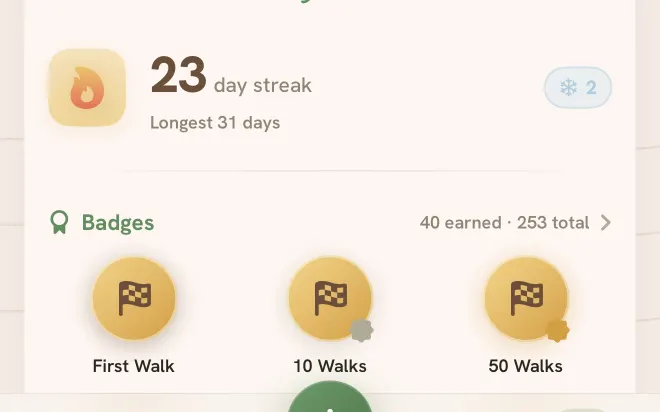
Tailmates streak page: 23 days, 31 longest, and two Rainy Day Passes

Your dog's profile

Walk style and the rest of the dog page.

Find out your dog's walk style

  1. On Home, tap your name on one of your posts to open your member profile
  2. Tap your dog in the dogs rail to open the dog profile
  3. Tap What type of walker is your dog? under the dog's name. It shows until your walks have settled the style, and only if you have not guessed yet
  4. Answer the five questions, tap Continue after each, then tap Sounds right
  5. After three walks that agree, the style chip appears beside your dog's name: Commuter, Reader, Cartographer, Tourist or Wildcard
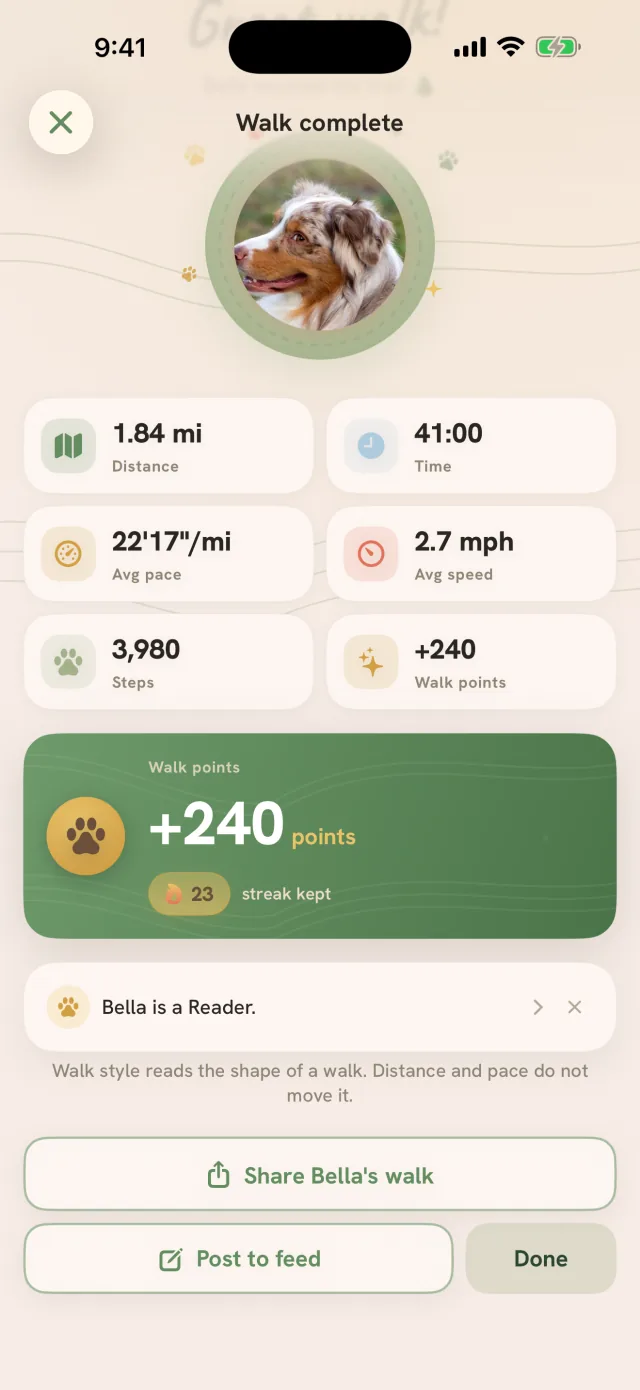
Tailmates walk complete with the walk style card: Bella is a Reader, with the line that distance and pace do not move it

Scout

The assistant that answers from your dog's own record.

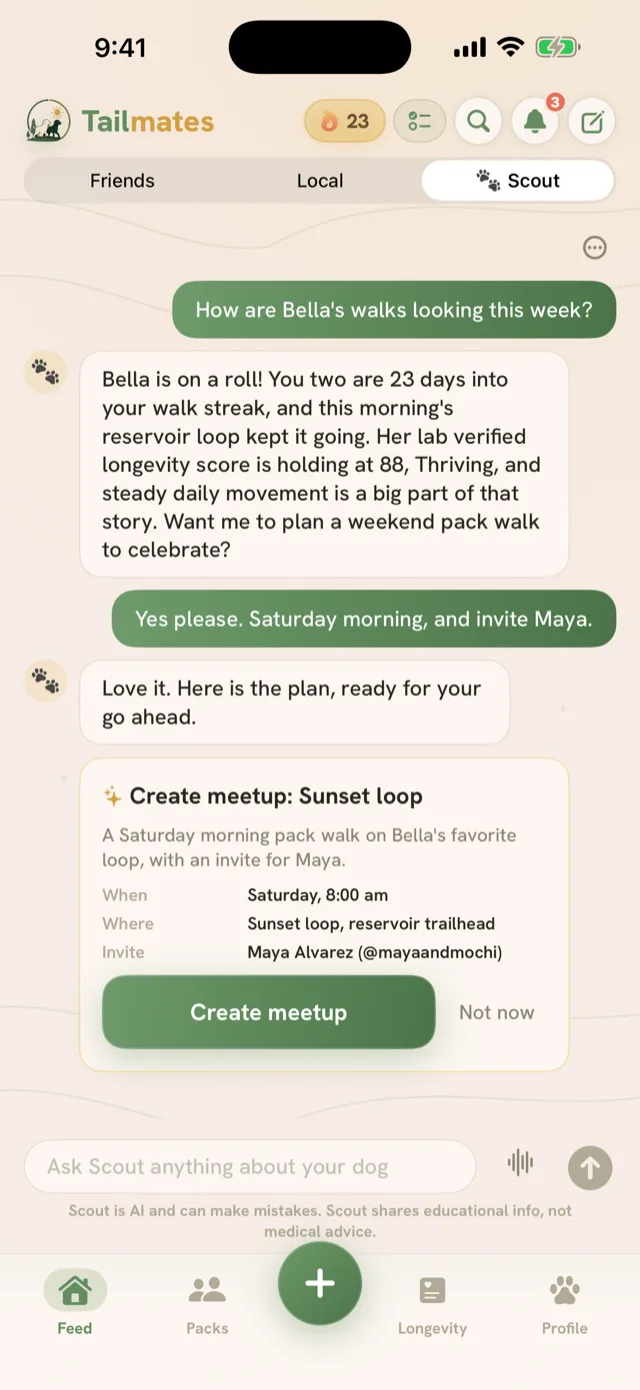
Ask Scout about your dog

On iPhone

  1. Tap Scout in the tab bar. Tailmates Silver unlocks Scout
  2. Type a question about your dog and tap Send
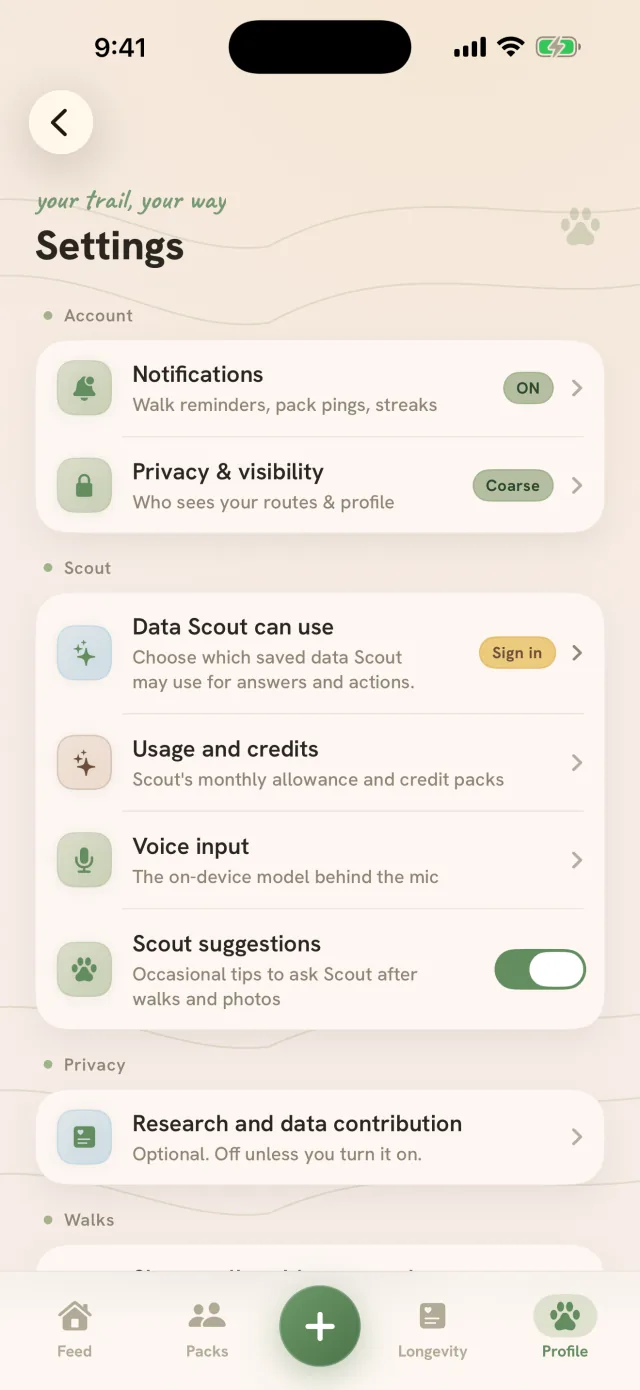
  3. To choose what saved data Scout may use, open the Profile tab, tap the Settings gear, and under Scout adjust Data Scout can use and the Scout suggestions switch

On Android

  1. Tap Scout in the tab bar. Tailmates Silver unlocks Scout
  2. Type a question about your dog and tap Send
  3. To choose what saved data Scout may use, open the Profile tab, tap the Settings gear, and under Scout open Scout data controls and use the Scout suggestions switch
Tailmates Scout chat: a question about your dog, the answer, and a Create meetup card

Settings and privacy

Notifications, dark mode, location, your data, and your account.

Choose which notifications you get

On iPhone

  1. Open the Profile tab
  2. Tap the Settings gear in the top right
  3. Under Account, tap Notifications
  4. If push is off, tap Turn on notifications
  5. Switch each alert on or off under About you, Your pack, Walks, Health and Reminders

On Android

  1. Open the Profile tab
  2. Tap the Settings gear in the top right
  3. Under Account, tap Notifications
  4. Switch each alert on or off under About you, Your pack, Walks, Health and Reminders
Tailmates Settings: under Account, the Notifications row, on, and Privacy and visibility, set to Coarse, then the Scout and Privacy sections

Turn on dark mode

  1. Open the Profile tab
  2. Tap the Settings gear in the top right
  3. Under Display, find Appearance
  4. Tap Dark, or System to match your phone. Light is the default

Share only a rough location with packmates

On iPhone

  1. Open the Profile tab
  2. Tap the Settings gear in the top right
  3. Under Account, tap Privacy & visibility
  4. Turn on Share coarse location only. Packmates then see a city-level area, never your precise position

On Android

  1. Open the Profile tab
  2. Tap the Settings gear in the top right
  3. Under Account, tap Privacy & visibility
  4. Turn on Coarse location only. Packmates then see a city-level area, never your precise route
Tailmates Settings: under Account, the Notifications row, on, and Privacy and visibility, set to Coarse, then the Scout and Privacy sections

Post your walks to your pack automatically

On iPhone

  1. Open the Profile tab
  2. Tap the Settings gear in the top right
  3. Under Walks, switch Share walks with your pack on or off

On Android

  1. Open the Profile tab
  2. Tap the Settings gear in the top right
  3. Under Sharing, switch Share walks to the feed on or off

Download a copy of your data

  1. Open the Profile tab
  2. Tap the Settings gear in the top right
  3. Under Your Data, tap Export my data
  4. Tailmates makes a copy of your account. You can leave the screen while it works
  5. When the row reads Your export is ready, tap Download, or use the link we email you

Delete your account

  1. Open the Profile tab
  2. Tap the Settings gear in the top right
  3. Scroll to Your Data and tap Delete account
  4. Tap Delete on the Delete account? prompt. You're signed out at once, your account, dogs, walks and all data are erased, and we email you when it's done, usually within a few minutes. It can't be undone

Not finding it?

Ask Scout in the app. Scout comes with Tailmates Silver and answers from your dog’s own record, so it knows the walk you took this morning. You can also write to us from the support page.

Scout is AI and can make mistakes. It shares educational info, not medical advice, and it never diagnoses.